
Understanding Laptop RAM: How Much Do You Really Need?
Is your laptop crawling when you have more than a few tabs open? Does it freeze up when you try to switch between applications? The culprit is often a lack of sufficient RAM, or Random Access Memory. Think of it as your computer’s short-term memory, and when it runs out, everything slows to a halt.
This guide will demystify laptop RAM. We’ll explain what it is, how much you really need based on your specific use case, and whether it’s time for an upgrade.
What Is RAM, and Why Is It Important?
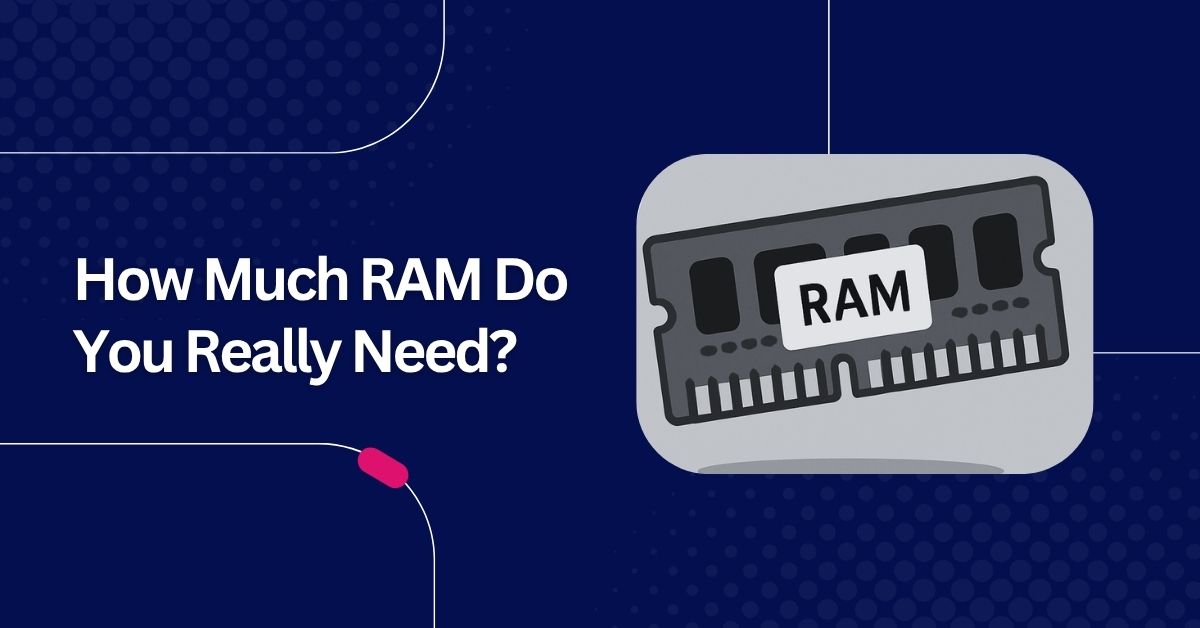
RAM is your laptop’s high-speed, temporary workspace. When you open a program, edit a document, or load a webpage, that data is placed in RAM for quick access. This allows you to work on multiple tasks at once without delay.
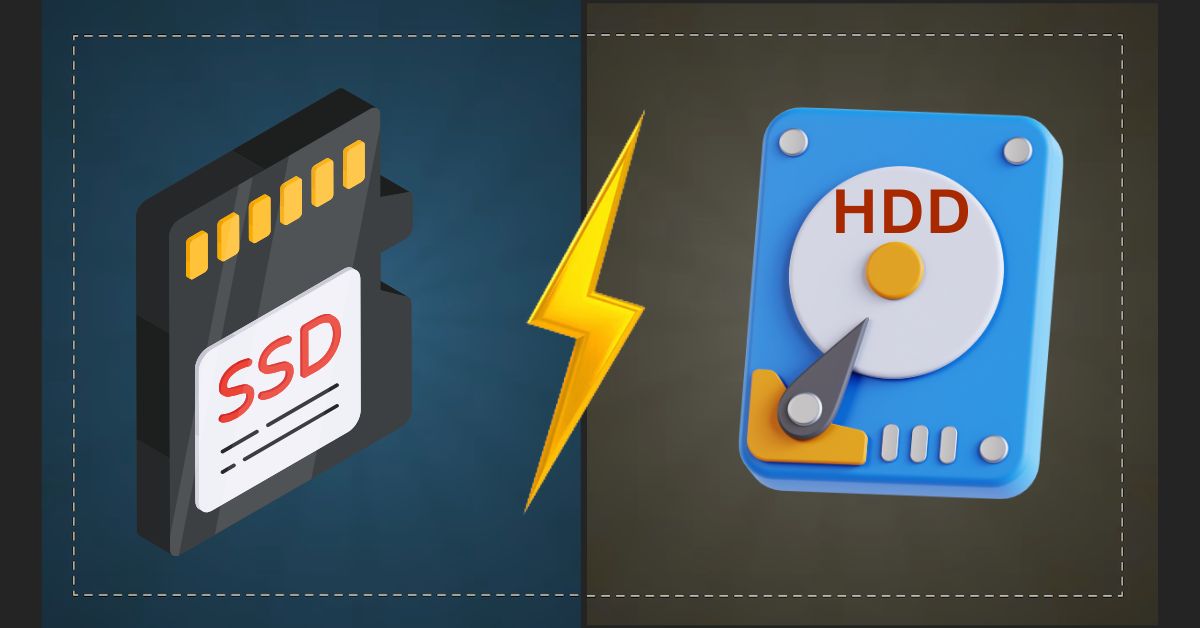
The key difference between RAM and storage (like an SSD or HDD) is volatility. Imagine your desk is your RAM and a filing cabinet is your storage drive. You pull files from the cabinet (storage) and place them on your desk (RAM) to work on them. A bigger desk lets you work with more files at once. When you’re done, you save them back to the cabinet. If the power goes out, everything on your desk is cleared (RAM is volatile), but the files in the cabinet remain (storage is permanent).
More RAM means a larger workspace. This directly impacts your laptop’s ability to multitask smoothly and affects its overall perceived speed.
Many users wonder whether upgrading RAM or an SSD will have a bigger impact. Check our full comparison on SSD vs RAM speed boost to decide what’s right for your laptop. And if you’re considering a ram upgrade, here’s a complete guide on how to upgrade a laptop SSD.
Types of Laptop Users and Recommended Laptop RAM
The right amount of RAM depends entirely on what you do with your laptop. Let’s break it down by user type.
1. Basic Users (Web Browse, Docs, YouTube)
Recommended: 4GB – 8GB
If your laptop is primarily a tool for checking emails, Browse the web, writing documents, and watching Netflix or YouTube, you don’t need a massive amount of RAM. While 4GB is the absolute minimum for a usable experience today, 8GB is the sweet spot. It provides enough headroom to keep a handful of browser tabs and a couple of light apps open without slowdowns.
If your system still feels sluggish even with enough RAM, simple actions like clearing your browser cache can help free up resources and improve performance.
2. Students or Office Users
Recommended: 8GB – 16GB
This category covers the majority of users. You’re likely juggling multiple browser tabs for research, running Microsoft Office or Google Workspace apps, participating in Zoom calls, and maybe doing some light photo editing. For this kind of multitasking, 16GB is ideal. It ensures a smooth, lag-free experience and provides a comfortable buffer for more demanding tasks, future-proofing your machine for a few years.
3. Gamers
Recommended: 16GB (minimum)
For gaming, RAM is crucial for holding game assets like textures, maps, and character models. While you can get by with 8GB on older titles, modern AAA games often list 16GB as a requirement for smooth gameplay.
It’s important to note the relationship between your GPU (Graphics Card) and RAM. The GPU does the heavy lifting of rendering graphics, but it needs data fed to it quickly from the RAM. Insufficient RAM can cause stuttering and long loading times, even with a powerful GPU.
4. Creators (Video Editing, 3D Design, Programming)
Recommended: 16GB – 32GB (or more)
If you work with professional software like Adobe Premiere Pro, Blender, AutoCAD, or run complex programming environments, RAM is your best friend. These applications load massive files and processes into memory.
For serious 4K video editing, complex 3D modeling, or running multiple virtual machines, 32GB is the recommended standard. For these users, faster RAM speeds (measured in MHz) also provide a noticeable performance boost in rendering and export times.
How to Check Your Current RAM
Not sure how much RAM you have? It only takes a few seconds to check.
- On Windows (10 & 11):
- Press Ctrl + Shift + Esc to open the Task Manager.
- Click on the “Performance” tab.
- Select “Memory” from the left-hand menu. You’ll see your total installed RAM at the top right.
- On macOS:
- Open Finder and go to Applications > Utilities.
- Launch the Activity Monitor.
- Click the “Memory” tab at the top. Your total “Physical Memory” is listed at the bottom.
When (and Why) Should You Upgrade RAM?
An upgrade might be necessary if you notice these signs:
- Your laptop frequently lags or freezes during normal use.
- Simple tasks like switching between browser tabs take a long time.
- You see “Your computer is low on memory” warnings.
- Task Manager or Activity Monitor consistently shows over 85% RAM usage.
Before taking the final decision to purchase RAM, consider using some reliable laptop optimization tools to ensure your system isn’t being slowed down by background apps or bloatware.
Check your laptop’s upgrade limitations. Many modern thin-and-light laptops have soldered RAM, meaning it’s permanently attached to the motherboard and cannot be upgraded. Others may have one open slot or have a maximum capacity limit. A quick search for your laptop model’s specifications is essential.
DDR3 vs DDR4 vs DDR5: Does RAM Type Matter?
Yes, it matters a lot. Each generation of RAM (called DDR, or Double Data Rate) is faster and more power-efficient than the last. Crucially, they are not backward compatible—a DDR5 stick will not fit into a DDR4 slot.
| Feature | DDR3 | DDR4 | DDR5 |
|---|---|---|---|
| Typical Speeds | 800–2133 MHz | 2133–3200 MHz | 4800–6400+ MHz |
| Battery Usage | Higher | Lower | Lowest |
| Key Advantage | Obsolete | Mainstream Standard | Highest Performance |
Your laptop’s motherboard dictates the type of RAM you can use. When upgrading, you must buy the correct DDR version for your specific model.
RAM helps with multitasking, but storage also matters. If your laptop still uses a traditional hard drive, it’s time to choose an SSD for faster boot times and app loading.
Tips Before Buying RAM
- Check Compatibility: Ensure you’re buying the right form factor (SO-DIMM for laptops), type (DDR4/DDR5), and speed that your laptop supports. Check your laptop manufacturer’s website for the maximum RAM capacity it can handle.
- Use Manufacturer Tools: Brands like Crucial and Kingston have excellent online system scanner tools that will analyze your laptop and tell you exactly which RAM modules are compatible.
- Don’t Overspend: Balance is key. Putting 32GB of RAM in a laptop with an old, slow processor won’t magically make it a powerhouse. Align your RAM with your CPU and storage capabilities.
Summary Table – How Much RAM You Need
| User Type | Recommended RAM | Notes |
|---|---|---|
| Basic | 4GB – 8GB | Browse, emails, streaming only. |
| Office/Student | 8GB – 16GB | Great for multitasking, Zoom, and productivity apps. |
| Gamer | 16GB | The minimum for modern games to run smoothly. |
| Creator | 16GB – 32GB+ | Essential for video editing, 3D work, and dev tools. |
Final Thoughts – Do You Really Need More RAM?
RAM is a vital component that dictates your laptop’s speed and multitasking prowess. While more is often better, the “right” amount is what your workload demands.
Before you spend any money, use the tools mentioned above to check your current RAM usage during a typical day. If you’re consistently hitting your limit, an upgrade is one of the most cost-effective ways to speed up your laptop and improve its multitasking performance.