Upgrading your laptop’s SSD (Solid State Drive) can give your machine a powerful performance boost, faster boot times, quicker file transfers, and smoother multitasking. But for many users, the process of upgrading an SSD might sound technical or intimidating.
In this guide, we’ll break it down step-by-step. Whether you’re upgrading to increase storage or to speed up your system, you’ll learn everything you need to confidently replace and install a new SSD.
Why Upgrade Your Laptop SSD?
Before jumping into the how-to part, let’s understand why an SSD upgrade matters.
Benefits of Upgrading Your SSD:
- Faster boot and load times
- Improved system responsiveness
- More storage space for apps and files
- Better multitasking performance
- Lower power consumption compared to HDDs
While upgrading to an SSD significantly improves speed, it’s also important to understand your laptop’s memory limits. 👉 Know how much RAM your laptop needs.
Check If Your Laptop Supports SSD Upgrades
Before you buy a new SSD, you need to check your laptop’s upgrade compatibility.
Steps to Check Compatibility:
- Review Your Laptop Manual: Most brands (HP, Dell, Lenovo, etc.) provide upgrade instructions.
- Use a tool like Crucial System Scanner: It scans your system and tells you what kind of SSD fits.
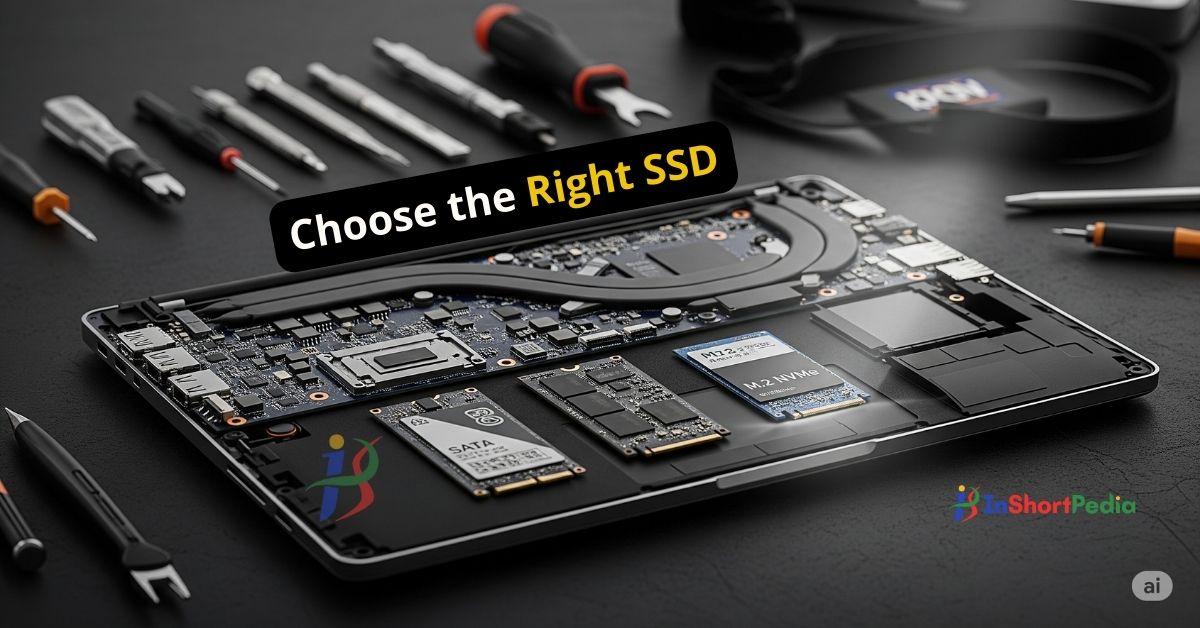
- Identify the Interface Type:
- SATA (2.5-inch SSD)
- M.2 SATA
- M.2 NVMe (much faster than SATA)
If you’re confused about SSD types, read our guide on how to choose the right SSD.
What You’ll Need Before You Start
Tools & Items:
- A compatible SSD
- Precision screwdriver set
- External enclosure or SATA-to-USB cable (for cloning, if needed)
- Free cloning software (e.g., Macrium Reflect or Samsung Data Migration)
- Backup drive (optional, but recommended)
Step-by-Step Guide to Upgrade a Laptop SSD
Let’s break the process down into simple steps.

Step 1: Back Up Your Data
Always back up important data before making hardware changes. You can use cloud storage or an external hard drive.
Step 2: Clone Your Current Drive (Optional but Helpful)
If you want to keep your OS and files exactly as they are:
- Insert the new SSD into an external enclosure.
- Use cloning software to copy your current drive to the new SSD.
- Make sure the clone process is complete and verified.
Step 3: Power Down and Open Your Laptop
- Shut down your laptop completely.
- Disconnect the power and remove the battery (if possible).
- Unscrew the back panel or SSD compartment.
Tip: Place the screws in a small container to avoid losing them.
Step 4: Remove the Old SSD or HDD
- Carefully unscrew and slide out the existing storage drive.
- Note the orientation and connectors.
Step 5: Install the New SSD
- Insert the new SSD into the same slot or mounting bracket.
- Gently secure it in place with screws.
- Reattach the back panel and battery.
Step 6: Boot Up and Check
- Power on the laptop.
- If you cloned the drive, your system should boot normally.
- If not, you may need to install Windows from a USB drive.
👉 Don’t forget to adjust boot priority from BIOS if needed.
After Installation: Optimize SSD Performance
Once your new SSD is running, take these steps to ensure it works smoothly:
- Enable TRIM (Windows usually does this automatically)
- Avoid disk defragmentation
- Keep enough free space (at least 10–15%)
👉 Also, check our guide onlaptop optimization tools to maintain high performance.
Common Mistakes to Avoid
- Buying the wrong SSD form factor
- Forgetting to back up files
- Not cloning properly
- Forgetting BIOS settings after installation
FAQ: Laptop SSD Upgrade
1. Is upgrading a laptop SSD worth it?
Absolutely. It’s one of the most effective upgrades for improving performance and boot speed.
2. Do I need to reinstall Windows after SSD upgrade?
Only if you’re not cloning your old drive. Otherwise, your OS stays intact.
3. How much SSD storage do I need?
- 256GB for basic use
- 512GB for productivity users
- 1TB+ for creatives and gamers
Final Thoughts
Upgrading your laptop’s SSD can significantly boost your device’s performance. With the right tools and a little preparation, the process is completely doable, even for non-tech experts. Whether you’re seeking better performance or simply more storage, an SSD upgrade is a smart, long-term investment.