If you’ve ever wondered why your old computer takes forever to boot while newer ones start in seconds, the secret often lies in the storage drive. Traditional hard disk drives (HDDs) have moving parts, while solid state drives (SSDs) use flash memory, making them faster, quieter, and more reliable.
In this guide, you’ll learn:
- What an SSD is and how it works
- The key differences between SSDs and HDDs
- Types of SSDs and which SSD to choose
- Benefits and practical tips for using SSDs
By the end, you’ll know exactly why SSDs matter and how they can transform your computing experience.
What Is an SSD?
An SSD (Solid State Drive) is a modern data storage device that uses NAND-based flash memory instead of spinning disks. Unlike HDDs, SSDs have no moving parts, making them:
- Faster at reading and writing data
- More durable and shock-resistant
- Energy-efficient and quieter
In simple terms: An SSD is like a high-speed USB drive built into your computer for permanent storage.
How Does an SSD Work?
Instead of using a spinning platter and read/write heads like HDDs, an SSD stores data on flash memory chips.
- Controller chip: Manages how data is stored and retrieved.
- NAND flash memory: Stores actual data.
- Cache: Temporary memory that boosts performance.
This design allows SSDs to access files almost instantly, drastically cutting down boot times and application load speeds.
SSD vs HDD: Key Differences
| Feature | SSD | HDD |
| Speed | 10x faster (boot in seconds) | Slower (boot in minutes) |
| Durability | No moving parts | Mechanical parts, prone to damage |
| Noise | Silent | Audible spinning/clicking |
| Power Usage | Energy-efficient | Higher power consumption |
| Price | More expensive per GB | Cheaper per GB |
| Lifespan | High endurance | Mechanical wear over time |
👉 Takeaway: If speed and reliability matter, SSD is best. If storage capacity on a budget is your priority, HDD may still be useful.
Is more RAM a better speed boost than an SSD? We compared SSD vs RAM performance in detail.
Types of SSDs
1. SATA SSD
- Oldest and most common type.
- Fits into traditional HDD slots.
- Speeds up to 600 MB/s.
- Best for budget upgrades.
2. NVMe SSD
- Connects via PCIe interface.
- Extremely fast (up to 7000 MB/s).
- Ideal for gamers, video editors, and heavy users.
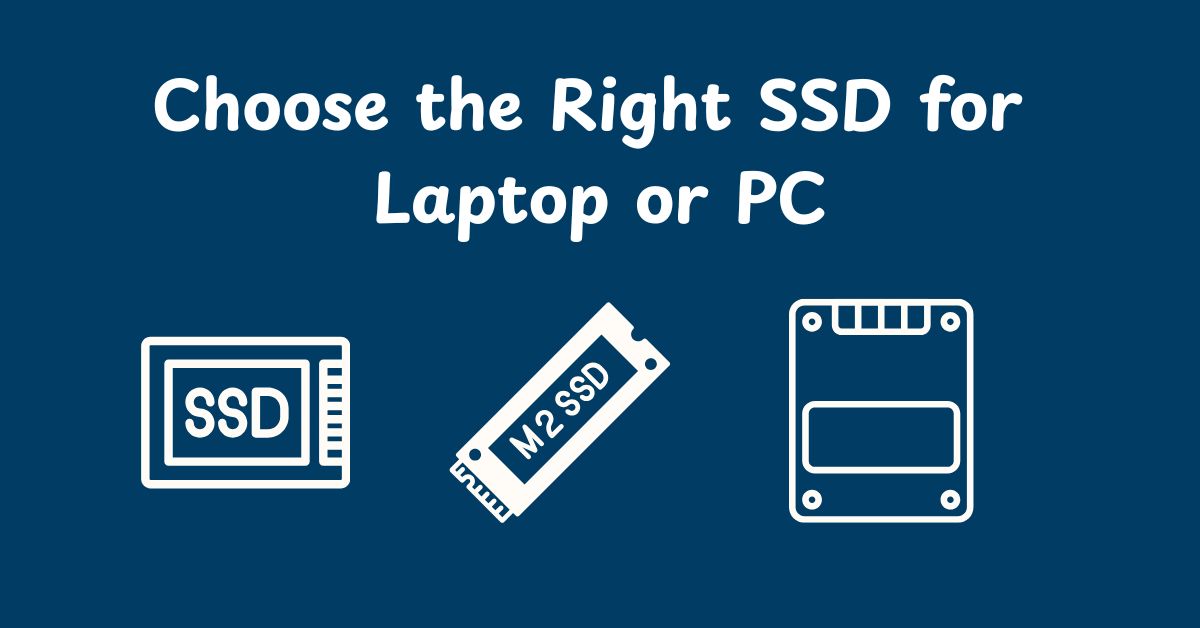
3. M.2 SSD
- Small, stick-shaped design.
- Can be SATA or NVMe.
- Common in modern laptops and desktops.
4. External SSD
- Portable drives with USB or Thunderbolt connections.
- Great for backups and extra storage.
Benefits of Using an SSD
- Lightning-fast boot times: Windows or macOS loads in seconds.
- Quick app launches: Software like Photoshop opens instantly.
- Better gaming performance: Faster loading screens (though FPS depends on CPU & GPU).
- Durability: With no moving parts, SSDs are more resilient to drops.
- Energy efficiency: Helps extend laptop battery life.
💡 Example: Upgrading a 5-year-old laptop with a SATA SSD can make it feel brand new, cutting boot times from 2 minutes to under 20 seconds.
If you’re planning to upgrade, our step-by-step guide on upgrading a laptop SSD will help you do it safely.
How to Choose the Right SSD
When buying an SSD, consider:
- Form factor: SATA 2.5-inch, M.2, or NVMe based on your device.
- Capacity: 256GB for light users, 512GB+ for gamers, 1TB+ for professionals.
- Speed: NVMe if you want top performance, SATA for affordability.
- Endurance (TBW rating): Important for heavy users like video editors.
- Budget: Prices vary; NVMe is costlier but worth it for performance.
FAQs About SSDs
Q1: Does an SSD improve gaming FPS?
Not directly. SSDs reduce game loading times and stuttering, but FPS depends on your CPU and GPU.
Q2: Can I replace my HDD with an SSD in an old laptop?
Yes! Most laptops with a SATA slot support SSD upgrades, making it the best way to breathe new life into older devices.
Q3: How long does an SSD last?
Most modern SSDs last 5–10 years with normal use. They’re rated by TBW (Terabytes Written), which indicates endurance.
Q4: Is NVMe worth it for normal users?
If you only browse, stream, and use office apps, SATA SSD is enough. NVMe is ideal for professionals, gamers, and power users.
Q5: Do SSDs need defragmentation?
No. Unlike HDDs, SSDs don’t benefit from defragmentation. In fact, defragging can reduce their lifespan.
Final Thought
SSDs have revolutionized how we use computers. They’re faster, more reliable, and energy-efficient compared to traditional hard drives. Whether you’re upgrading an old laptop or building a new PC, investing in an SSD is one of the best ways to improve performance instantly.
👉 Final Tip: If you’re on a budget, go for a SATA SSD. If speed is your top priority, invest in an NVMe SSD. Either way, you’ll notice a dramatic improvement in your daily computing experience.