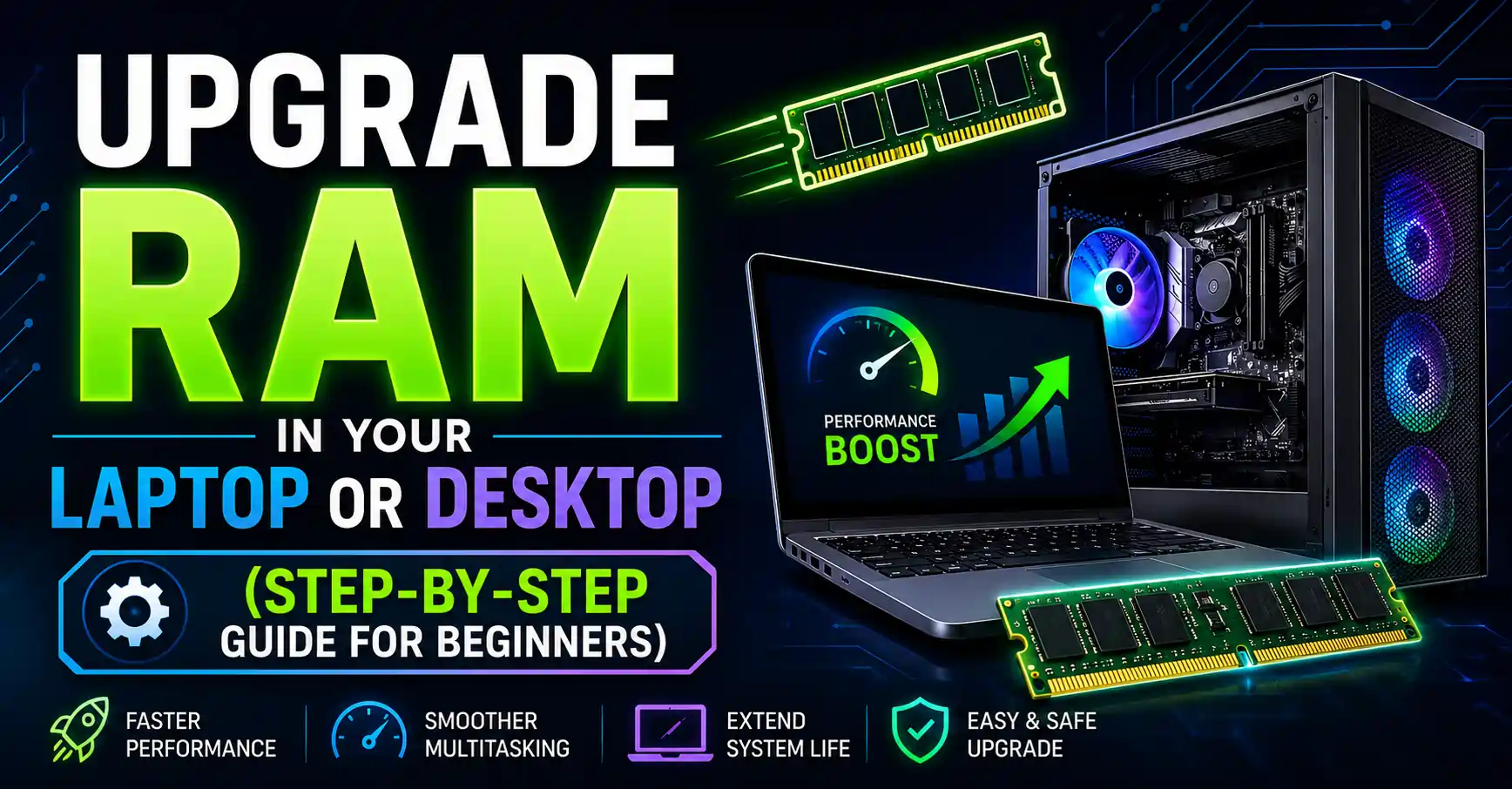
Upgrade RAM in Your Laptop or Desktop (Step-by-Step Guide for Beginners)
Is your computer running slow or freezing while multitasking?
One of the easiest and most affordable ways to boost your computer’s performance is by upgrading the RAM (Random Access Memory). Whether you use a laptop or desktop, adding more RAM can make your system faster, smoother, and more efficient – especially if you run heavy apps or games.
In this guide, we’ll show you step-by-step how to upgrade your RAM safely, how to choose the right type of RAM, and what to check before buying.
What Is RAM and Why Does It Matter?
RAM is short-term memory where your computer stores data it needs quickly.
The more RAM your system has, the more applications it can handle at once without slowing down.
For example:
-
4GB RAM: Basic tasks like browsing or word processing.
-
8GB RAM: Ideal for office work, streaming, and light gaming.
-
16GB+ RAM: Perfect for designers, gamers, and heavy multitasking.
Upgrading your RAM helps:
-
Reduce lag and freezing
-
Improve app loading speed
-
Boost overall performance
-
Extend your device’s lifespan
Before You Start: Check Compatibility
Before buying new RAM, you need to know what kind your computer supports.
Follow these steps:
-
Check your current RAM capacity:
-
On Windows, press
Ctrl + Shift + Esc→ Open Task Manager → Go to Performance → Memory. -
On macOS, click the Apple logo → About This Mac → Memory.
-
-
Find out the type of RAM:
-
Common types include DDR3, DDR4, and DDR5.
-
Check your system model on the manufacturer’s website or use free tools like CPU-Z (Windows) or Crucial Scanner Tool.
-
-
Check the maximum supported RAM:
-
Every motherboard has a RAM limit. Check it in your system’s manual or the brand’s official support page.
-
Tools You’ll Need
-
Small screwdriver (for opening the case)
-
Anti-static wrist strap (to prevent damage)
-
Soft cloth or air blower (to clean dust)
-
New compatible RAM stick(s)
Step-by-Step: How to Upgrade RAM in a Laptop
-
Power off your laptop and unplug it completely.
-
Remove the battery (if it’s removable).
-
Open the back panel using a small screwdriver.
-
Find the RAM slot – it’s usually covered with a metal clip or plate.
-
Remove the old RAM by gently pulling the clips outward.
-
Insert the new RAM at a 45° angle, pressing it down until it clicks.
-
Reassemble your laptop, plug it in, and power it on.
-
Verify the upgrade by checking “Memory” in Task Manager or BIOS.
Step-by-Step: How to Upgrade RAM in a Desktop PC
-
Shut down your PC and unplug all cables.
-
Remove the side panel of the CPU case.
-
Locate the RAM slots on the motherboard (next to the CPU).
-
Press the clips outward to remove old RAM sticks.
-
Insert the new RAM firmly until both clips snap back.
-
Reattach the side panel and plug everything back.
-
Boot the system and check if the new RAM is detected.
How to Verify That RAM Is Working Properly
After installation:
-
Go to Task Manager → Performance → Memory to check total RAM.
-
Use tools like MemTest86 to test for memory errors.
-
If your system doesn’t start, recheck the RAM seating or clean the contacts gently.
Tips for Choosing the Right RAM
-
Match the RAM type (DDR3, DDR4, DDR5) with your motherboard.
-
Choose the same speed (MHz) and voltage for best performance.
-
Prefer branded RAMs like Crucial, Corsair, Kingston, or G.Skill.
-
Dual-channel setups (2 sticks of equal size) perform better than a single large one.
Common Mistakes to Avoid
-
Mixing different RAM speeds or brands
-
Ignoring the motherboard’s maximum limit
-
Not grounding yourself (can cause static damage)
-
Installing the RAM incorrectly (improper alignment)
When You Should Upgrade RAM
Upgrade your RAM if:
-
Your system uses 80–90% memory frequently
-
Apps lag or crash often
-
You edit videos, play games, or use large datasets
-
You plan to upgrade to Windows 11 or other heavy software
Benefits of a RAM Upgrade
✅ Faster system speed
✅ Better multitasking performance
✅ Smoother gaming and creative work
✅ Extended computer life
✅ Cost-effective performance boost
Final Thoughts
Upgrading your RAM is one of the simplest and most effective ways to speed up your laptop or desktop.
You don’t need advanced technical skills – just a bit of care and the right information.
If your computer still feels slow even after upgrading RAM, consider pairing it with an SSD upgrade for maximum performance.