The Complete WordPress Guide for Beginners
If you have ever thought about starting a website but felt lost the moment someone mentioned hosting, themes, or plugins, you are not alone. Most people who search for a WordPress guide are not developers. They are bloggers, small business owners, students, or side hustlers who just want a simple way to put their ideas online.
The good news is that WordPress was built exactly for people like you. It powers a huge chunk of the internet today, from personal blogs to large news portals, and you do not need to know any coding to use it.
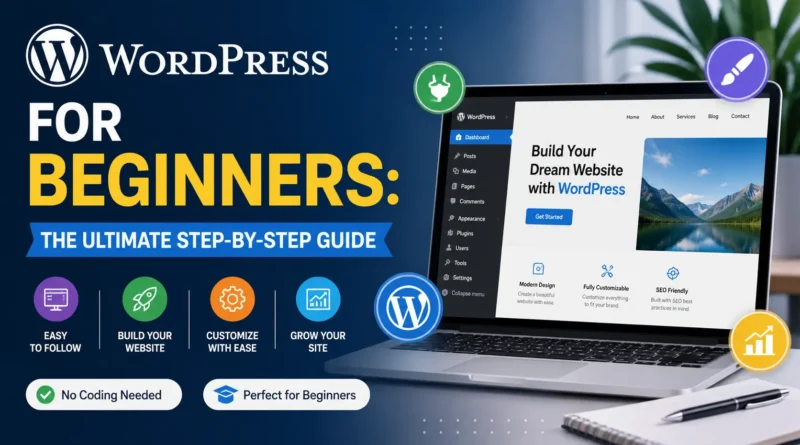
This WordPress for Beginners guide walks you through everything from scratch. By the end, you will know how to set up your site, understand the dashboard, pick a theme, install the right plugins, and publish your first post with confidence.
What Exactly Is WordPress
WordPress is a content management system, often shortened to CMS. In simple words, it is software that lets you create and manage a website without writing code line by line.
Think of it like a digital notebook with a control panel. You type your content, choose how it looks, hit publish, and it goes live for the world to see.
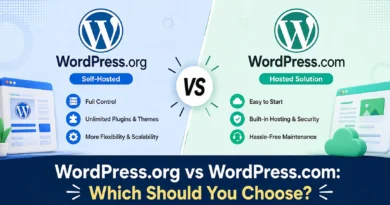
There are two versions people often confuse:
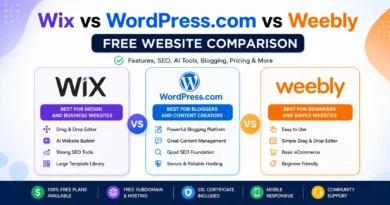
- WordPress.com is a hosted service where the company manages everything for you, but you have limited control.
- WordPress.org is the self hosted version where you install the software on your own hosting account and have full control over design, plugins, and monetization.
When people talk about learning WordPress for building a serious website or blog, they usually mean WordPress.org, and that is what this guide focuses on.
Why Beginners Should Choose WordPress
There are dozens of website builders out there, so why does WordPress remain the top choice for beginners even today?
It is beginner friendly. The dashboard is simple once you get used to it, and you do not need any technical background to publish content.
It is flexible. Whether you want a blog, an online store, a portfolio, or a business website, WordPress can handle it with the right theme and plugins.
It has a massive community. If you ever get stuck, thousands of tutorials, forums, and free resources are available to help you.
It is budget friendly. You can start a fully functional website for the cost of hosting and a domain name, often under a few hundred rupees or a few dollars per month.
It is SEO friendly. With the right setup, WordPress makes it much easier for your content to rank on Google compared to many other platforms.
Step by Step: How to Set Up Your WordPress Website
Step 1: Pick a Domain Name and Hosting
Your domain name is your website address, like yoursite.com. Choose something short, easy to spell, and related to your niche.
Hosting is the space on the internet where your website files live. Popular beginner-friendly hosting providers include Hostinger, Bluehost, and SiteGround. Most of them offer one-click WordPress installation, which makes the whole process quick. If you want to create a website for free with no coding experience, look for hosts offering free trial periods
Step 2: Install WordPress
Once you have hosting, log into your hosting control panel. Look for an option that says Install WordPress or WordPress Setup. Fill in your site name, admin username, and password, then click install.
Within a few minutes, your WordPress site will be live, though completely empty and waiting for your personal touch.
Step 3: Log Into Your Dashboard
You can access your dashboard by visiting yoursite.com/wp-admin and entering the login details you created earlier. This dashboard is where all the magic happens.
Understanding the WordPress Dashboard
The dashboard can look overwhelming at first glance, but once you understand the main sections, it becomes second nature.
- Posts is where you create and manage blog articles.
- Pages is where you create static content like About Us or Contact.
- Media stores all your images and videos.
- Appearance lets you change your theme, menus, and widgets.
- Plugins is where you add extra features to your site.
- Users manages who has access to your site.
- Settings controls the core configuration of your website.
Spend a little time clicking around each section. You will not break anything by exploring.
Choosing the Right WordPress Theme
Your theme decides how your website looks. WordPress offers thousands of free and paid themes suited for blogs, portfolios, online stores, and business sites.
When picking a theme, keep these points in mind:
- Choose a lightweight theme, since heavy themes slow down your website.
- Pick something mobile responsive, because most visitors browse from phones.
- Check if the theme is compatible with popular page builders like Elementor.
- Read recent reviews to confirm the theme is actively updated.
Some solid beginner friendly options are Astra, GeneratePress, and Neve. You can always switch themes later without losing your content.
Must Have Plugins for Beginners
Plugins are like apps for your website. They add features without needing any coding knowledge.
Here are a few every beginner should consider:
- Yoast SEO or Rank Math for optimizing your content for search engines.
- WP Rocket or LiteSpeed Cache for improving website speed.
- UpdraftPlus for automatic backups.
- Wordfence for extra security.
- Elementor if you want a drag and drop page builder for easier design control.
Try to avoid installing too many plugins at once, since it can slow down your website and create conflicts.
How to Create Your First Post or Page
Creating content in WordPress is refreshingly simple.
- Go to Posts and click Add New.
- Give your post a clear, keyword friendly title.
- Use the block editor to add paragraphs, images, headings, and lists.
- Add a featured image, since it improves both design and click through rate.
- Scroll down to the SEO plugin section and add your focus keyword, meta description, and slug.
- Click Publish once you are happy with the content.
The same process applies to Pages, except pages are usually used for permanent content like your homepage or contact details.
Basic WordPress SEO Tips for Beginners
Search engine optimization is what helps people discover your website through Google. A few beginner friendly practices include:
- Use your target keyword naturally in the title, first paragraph, and one subheading.
- Keep your URL slugs short and readable.
- Add alt text to every image you upload.
- Interlink your new posts with older related content on your site.
- Focus on writing genuinely helpful content rather than stuffing keywords.
Search engines today also reward content that directly answers common questions, which is why FAQ sections have become so valuable, not just for SEO but for how AI powered search tools understand and summarize your content.
Keeping Your WordPress Website Secure
Security often gets ignored by beginners until something goes wrong. A few simple habits can save you a lot of stress later.
- Always keep WordPress core, themes, and plugins updated.
- Use strong passwords and enable two factor authentication.
- Install a trusted security plugin.
- Take regular backups so you can restore your site if anything happens.
Frequently Asked Questions
Is WordPress free to use?
The WordPress software itself is free. You only need to pay for hosting and a domain name, which usually costs a small amount every month or year.
Do I need coding knowledge to use WordPress?
No. WordPress is designed for non technical users. Basic tasks like publishing posts, changing themes, and installing plugins require no coding at all.
Which is better for beginners, WordPress.com or WordPress.org?
WordPress.org is generally better for anyone who wants full control, custom design freedom, and the ability to monetize their website without restrictions.
How long does it take to learn WordPress?
Most beginners get comfortable with the basics within a week of regular practice. Mastering advanced customization can take a few months, depending on how deep you go.
Can I build an online store using WordPress?
Yes. With a plugin like WooCommerce, WordPress can power a fully functional online store, complete with payment gateways and inventory management.
Final Thoughts
Learning WordPress might feel intimidating at first, but it is one of the most rewarding skills you can pick up if you want a strong online presence. Start small, focus on one step at a time, and do not worry about making it perfect on day one.
The best websites are built through consistent small improvements, not one giant leap. Once your WordPress site is live, keep learning, keep publishing, and keep refining your SEO. That is truly the fastest path to growing an audience that keeps coming back.